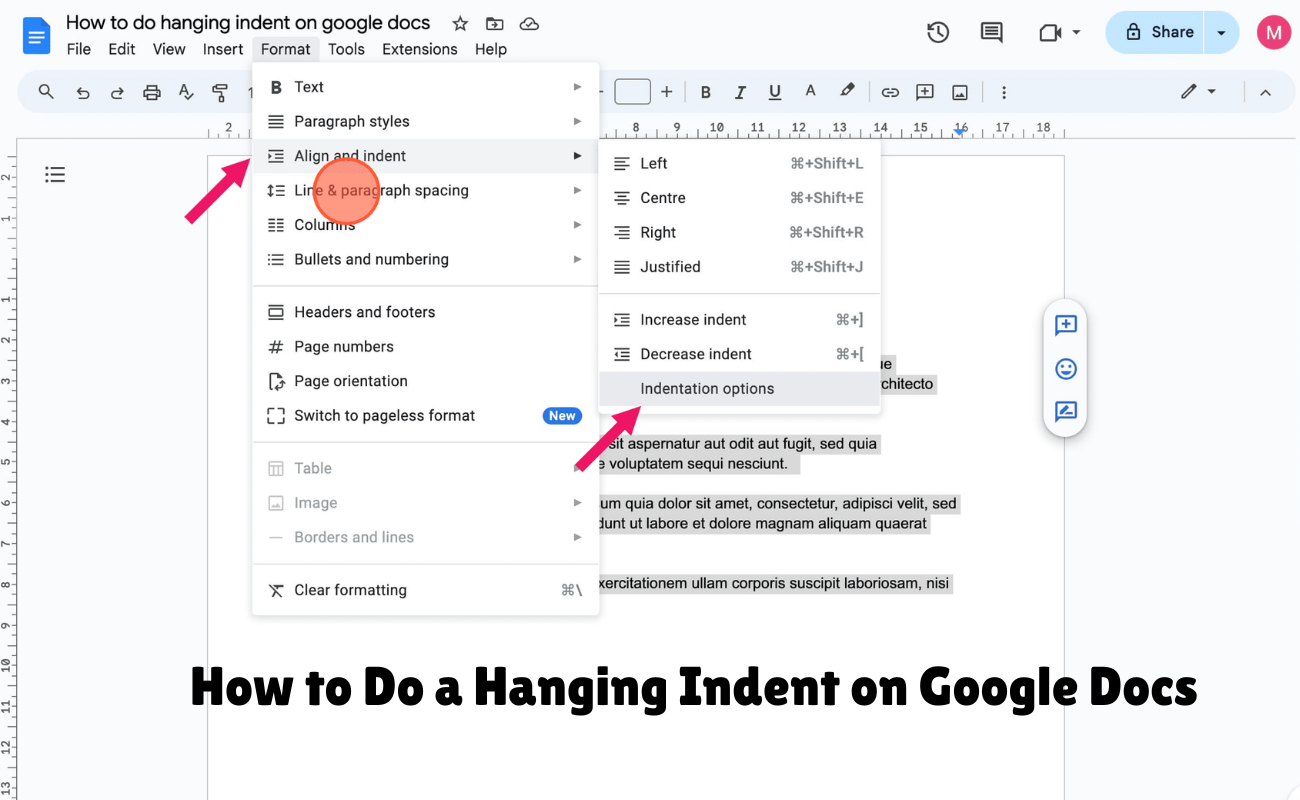
The proper formatting of a document is significant, particularly when composing academic papers, research projects, or expert reports. The hanging indent can be used for paragraphs and references to be displayed in an organized way, that the first line will be aligned to the left margin and the following will be indented.
Indeed, this option to format may be hard to locate, but Google Docs makes it easy. In this guide, you’ll find out how to create a hanging indent in google docs, the benefits of using a hanging indent, and how to do a hanging indent in WPS Office as an alternative.
What is the Meaning of Hanging Indent?
The body style of the paragraph is referred to as hanging indent. It helps to make the first sentence stand out from the other sentences in a paragraph.
It is a typical format for a reference list, including APA, MLA and Chicago. It facilitates the reader to make out the sources and avoid confusion with one another.
When a reference is on more than one line, for instance, the author’s name is at the normal margin. The details of the publication are listed a little further in, on the next lines. This helps to make long reference lists easier to read and organize.
Why Use a Hanging Indent in Google Docs?
Hanging indents work well in a couple of ways in Google Docs when writing academic and work papers. Makes neat reference lists and uniform appearance of sources.
Here are some common situations for using this formatting:
- Better readability: Reader will be able to see at a glance the beginning and end of each reference.
- Better, cleaner, and more organized documents: Your documents are better, cleaner, and more organized.
- Academic formatting: It helps formatting for various kinds of citations.
- Author indexing: Long reference lists can be easily scanned for authors’ names.
Whether you are creating a university or research report, or a business report, this formatting can add to the appearance of your report.
Learn how to create a hanging indent in Google Docs
There is a built-in feature in Google Docs that will allow you to format paragraphs without having to format each line separately, called “indentation”. Here are some quick tips to getting started with it.
Step 1: Start Your Google Docs Document
Open Google docs, sign in to your Google account. Open an existing document or new document. Make sure that a paragraph or reference list that you want to format is present.
Step 2: Select the Text
Select the paragraph(s) or reference text that needs a hanging indent.Highlight the paragraph(s) or reference text that needs a hanging indent. Highlight the entire list of citations on the page when creating a complete bibliography. This will allow you to have several paragraphs formatted the same way.
Step 3: Go to Indentation Options
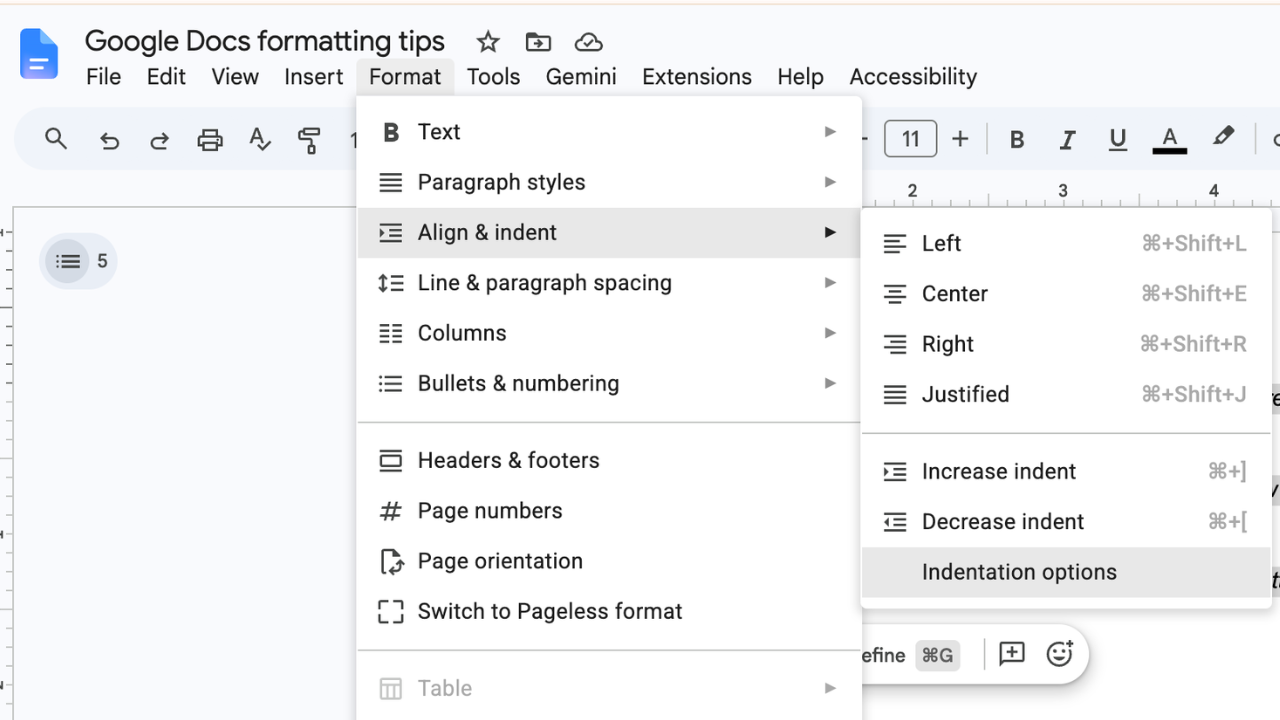
After you select the text you’d like to highlight, click on the Format menu at the top of Google Docs. Click it and then hover over Align & Indent and click on the pop-up Indentation Options.
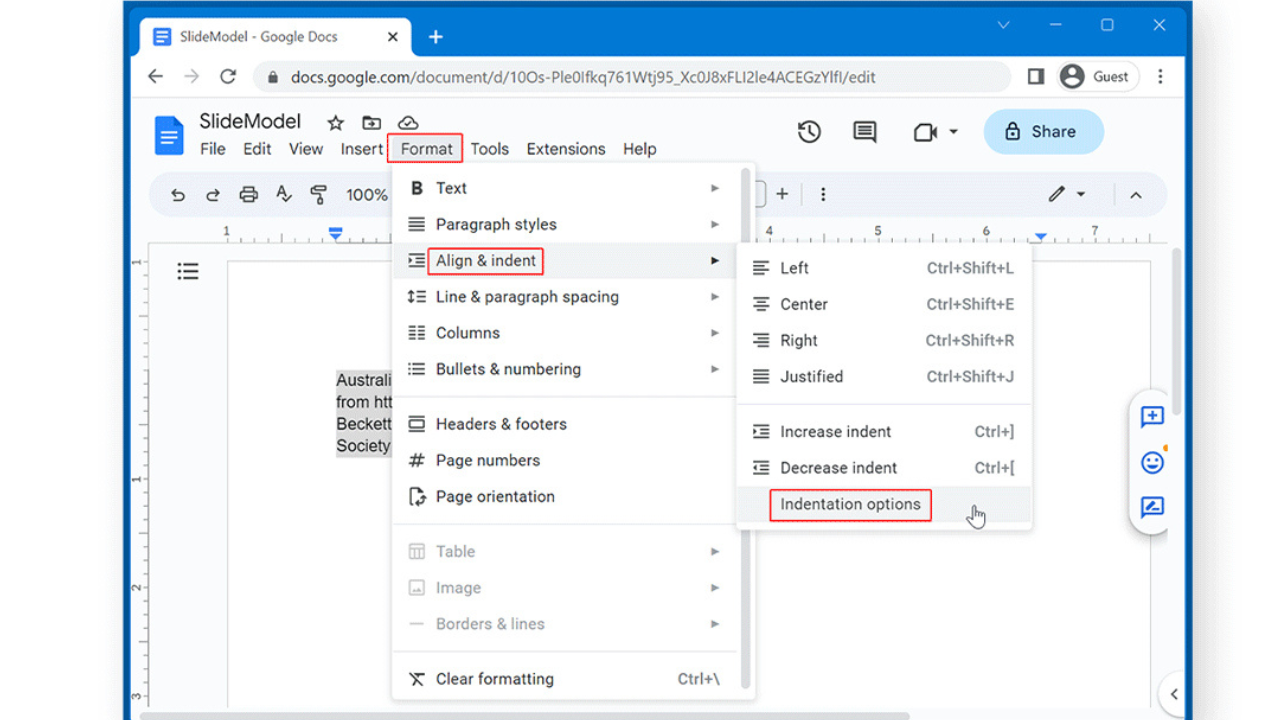
Step 4: Choose the Hanging Option
A box to set the indentations will be displayed. Click on the Special Indent area and click on the drop down menu. You have a choice of types including None, First Line and Hanging. Use the correct paragraph style by clicking on Hanging.
Step 5: Set the Indentation Size
If you are using standard APA or MLA referencing or documentation, enter 0.5 inches in the indentation value field. Finally, click Apply. The rest of the lines will shift inwards in Google Docs, leaving the first line at the left margin.
These steps can be repeated for every paragraph or reference list, as needed.
Final Word
You don’t need to develop your advanced formatting skills to create a hanging indent. There are some simple tips that can help you to arrange reference lists and improve the readability of your documents. Google Docs and WPS Office include useful paragraph formatting and document formatting options to ensure you have a clean, professional-looking document.
FAQs
1.What do you use a hanging indent for?
Hanging indent: The first line of the paragraph is aligned to the left margin, and the rest of the lines are indented. Often used as a reference for academics.
2. How do you add a hanging indent to several paragraphs in Google Docs?
Yes. Click on the paragraph or reference entry you want to format and then click the second one.Click on the first paragraph or reference entry, and then click the second entry.
3. What is causing my hanging indent to not work in Google Docs?
This may happen if you don’t use the right text, or if you don’t select the right text for the indentation. Make sure that the Special Indent is set and Hanging is checked.
4. How long is the hanging indent for an APA reference?
APA 7th edition calls for a hanging indent of 0.5″ for reference list entries. This will make the first line line up with the left edge of the paper, and the rest of the lines will line up 0.5-inch from the left.
5. Have hanging indents in Google Docs on phones?
While the Google Docs mobile applications will provide some formatting abilities, they will not be quite as extensive as the desktop version.
Read More: EPFO KYC: The One Thing Standing Between You and Your PF Money