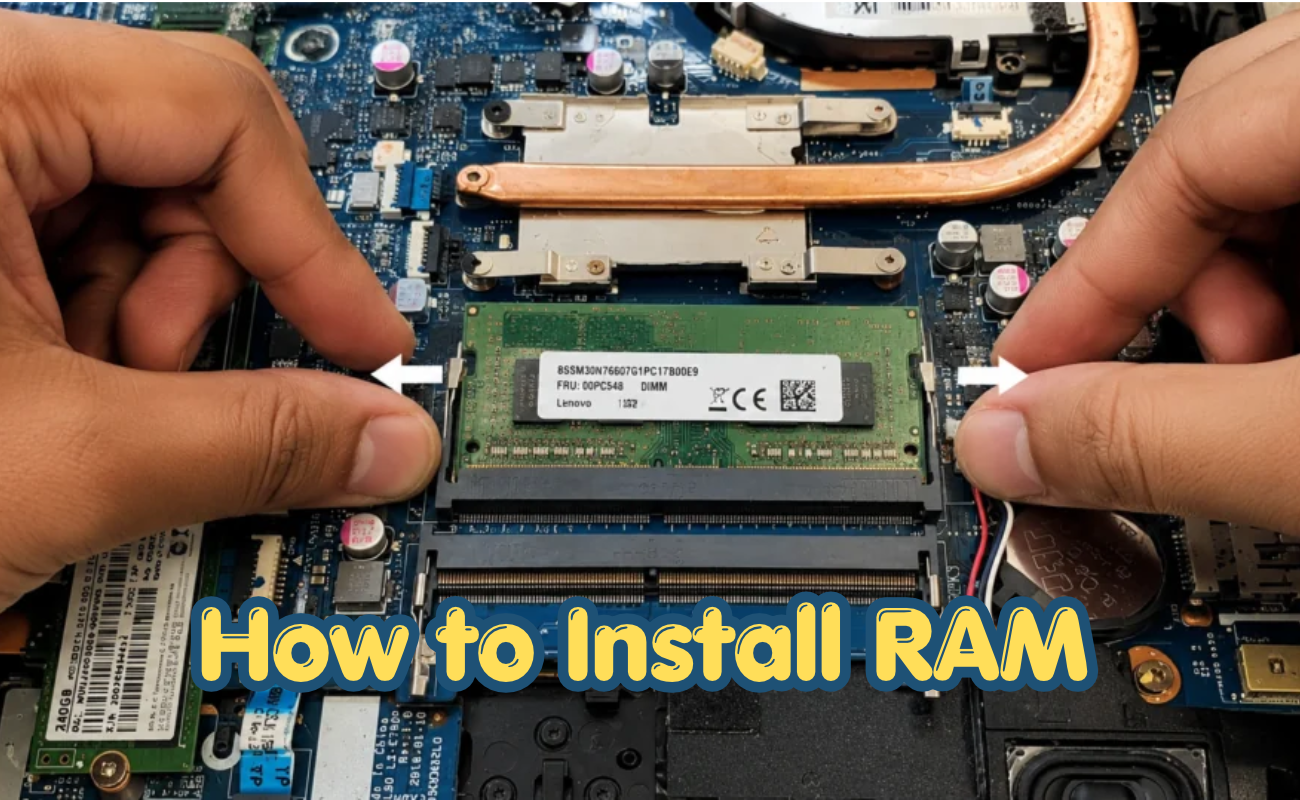
There are several ways to boost the speed of a slow computer, but the simplest is to add more memory. So, if you’ve been pondering on how you can install RAM, the good news is that it’s easy and typically takes about fifteen minutes.
This article will teach you what to look for before purchase, what tools will you need, and the exact steps you’ll need to take with desktops and laptops. You’ll also discover solutions to the most frequent issues and answers to the most asked questions, so you can complete your upgrade with confidence.
What You Need Before You Start
Preparing the following items beforehand:
- The updated RAM modules.New RAM sticks.
- A Phillips-head screwdriver
- A wrist strap made with antistatic material (recommended)
- Your computer and motherboard manual
- A clean and well lit working area.
It is quick and easy if everything is in motion; helps to avoid mistakes.
Check RAM Compatibility First
Not all memory sticks are compatible with all computers. These four points are to check before purchasing:
Type of RAM: check if your system is DDR3, DDR4 or DDR5. They resemble one another, but cannot be substituted for each other.
Maximum capacity: Your motherboard will only allow a maximum amount of memory. Read the manual to avoid purchasing more than is needed.
Supported speed: Check the speeds that your system will run at. Faster sticks will typically still operate, but at a reduced rate.
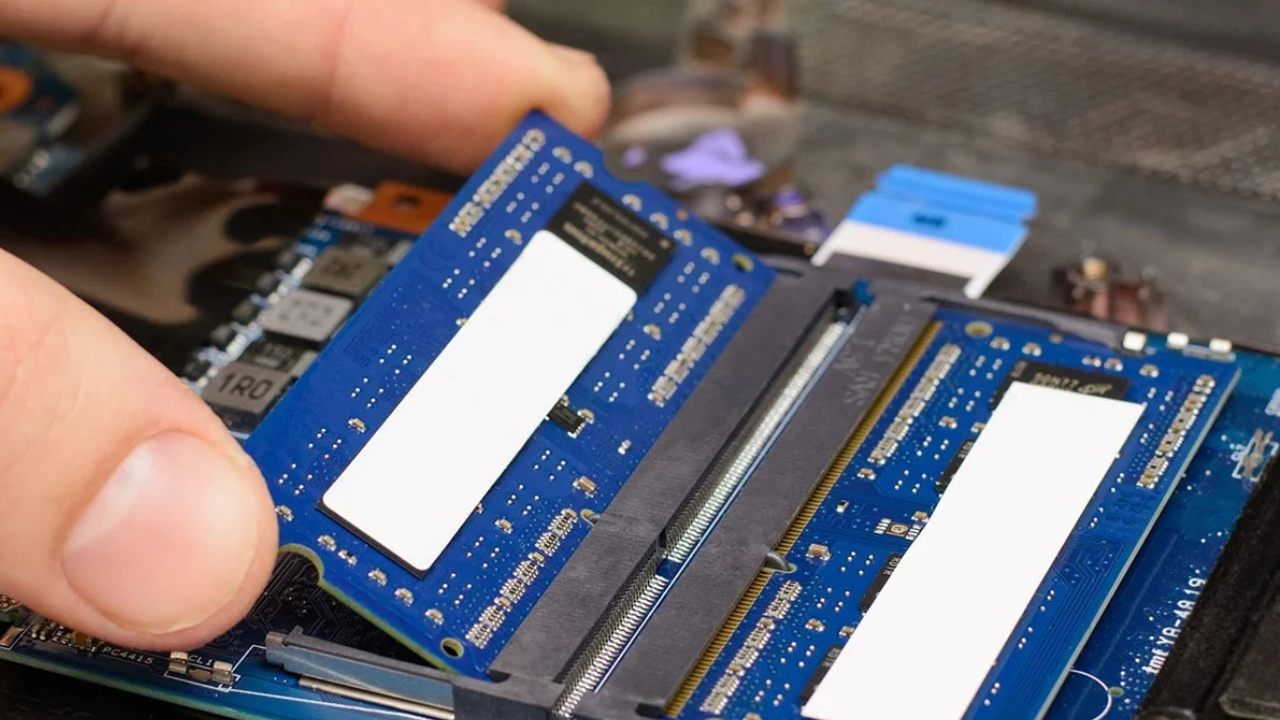
Form factor: Full size DIMM modules for desktops. The smaller SO-DIMM modules are used in laptops.
All this is listed in your manual or your support page from the maker.
How to Install RAM in a Desktop PC
1. Prepare your workspace
Switch off the computer and unplug all the cables. To drain the remaining power, hold down the power button for 5 seconds. Place the PC on a flat surface and take off the side panel.
2. Find the RAM slots
The slots are narrow and long and are located close to the CPU. Typically, most boards will have two or four. When sticks are already present, you’ll find them here.
3. Insert the modules
Push the clips at both ends of the slot open. Line up the notch on the stick with the ridge inside the slot. Keep the stick straight above the slot and press down evenly, firmly until a “click” is heard. The clips should snap shut on their own.
For adding more than one stick, make sure to use a matched pair of sticks and put them in the same colored slot. This enables dual channel mode and provides a better performance. The best slot ordering is provided in the manual of your motherboard.
4.Check your work
Ensure that each stick is securely seated and that both clips are securely closed. Install the side panel, reconnect the cables and start the computer.
How to Add RAM to a Laptop
Laptops require a slightly different method. Check if your model is equipped with an access panel as some Laptops have memory soldered to the board.
1. Prepare the laptop
Turn it off, disconnect the power cord and drain the battery if it is accessible. Press and hold the power button for 5 seconds.
2. Open the panel
Carefully unscrew the bottom panel and gently remove it. When the old modules are inside, remove the side clips and remove the old modules at approximately a 45-degree angle.
3. Install the new module
Insert the new SO-DIMM at the same angle, pressing down until it clicks into place. Replace the panel and screws.
How to Check That Your New Memory Works
Switch on the computer and ensure that it bootstraps normally. Then, attempt these:
- To check the installed RAM, click on Windows + X and then select System.
- Go to the Start menu and type in Windows Memory Diagnostic, then run a test.
- Open the Task Manager and see the Memory tab on the Performance tab.
Common Problems and Easy Fixes
The PC will not start: Reseat the modules, try one stick at a time or clear the CMOS. Make sure the RAM fits, too.
The RAM is not detected: Ensure that each stick is inserted completely. Use isopropyl alcohol to clean the gold contacts, try various slots or update BIOS.
Final Word
Memory is inexpensive, easy to add, and fast to increase the speed of an older computer. Test compatibility first, treat parts carefully and follow the procedure above. However, if you have any doubts, a competent technician will be able to do the job for you.
FAQs
1. Does the RAM need to be enabled following installation?
No. When your computer boots up, it automatically looks for new memory. The Windows System settings will show you the new total.
2.Is it possible to blend various speeds of RAM?
It’s possible, but not advisable. Typically the memory will slow down to the speed of slowest stick, and the mismatched sticks may cause crashes.
3.What is the difference between DIMM and SO-DIMM?
DIMM stands for Desktop Module Memory which is the full-size module of memory used in desktops. There is a shorter version, called SO-DIMM for use in laptops and small PCs.
4.Why won’t my PC start after a RAM upgrade?
The stick is not fully seated or is incompatible most often. Shut the PC down, replug each module, until they click, and test one stick at a time.
Read More: DVR Full Form: What Is a Digital Video Recorder and How Does It Work?