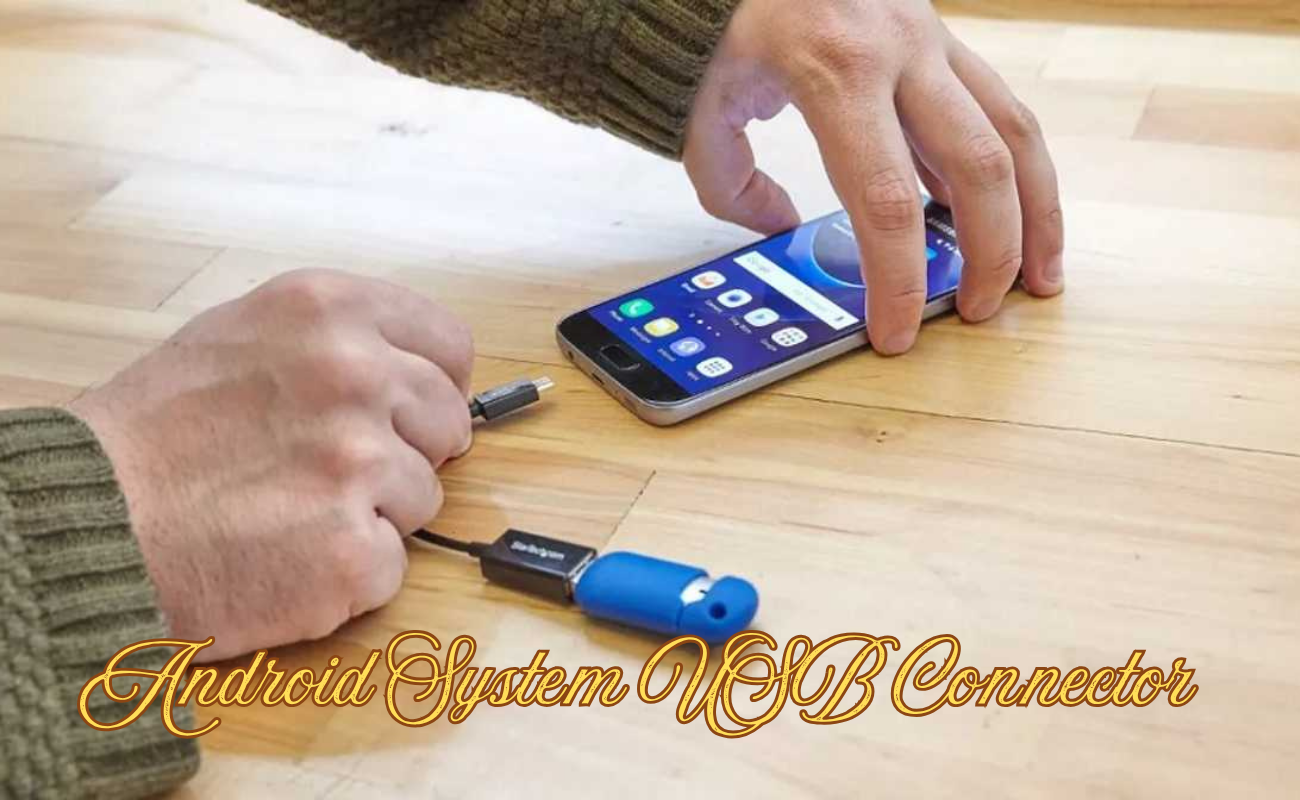
If your phone is repeatedly displaying the “USB connector connected” or “disconnected” message when no cable is connected to it, what could be the cause of this? You’re not alone. This bug is a frequent occurrence on Android phones, and could be extremely annoying, as it keeps vibrating your phone and depleting battery, and popping notifications when you don’t expect.
The great news is that the android system usb connector connected disconnected issue will often be fixed easily. In this article, we’ll cover the typical causes and how to take action to prevent it.
Why is the Android System USB Connector Connected/Disconnected Notification Appearing?
It’s useful to know the cause of the problem before attempting to fix it. Most of the time it is one of these:
- This is by far the most common cause, dust or moisture have entered in the charging port.
- The loose or slightly damaged charging port that is not able to maintain a consistent connection.
- Corrupted cache or firmware problem in the device’s USB configuration.
- Outdated or buggy USB drivers.
- Faulty or low-cost charging cable or adapter that is broadcasting unstable signals.
- A rogue app or malware interfering with system notifications.
Once you understand the probable cause, it will be easier to choose the right fix.
How to Fix the USB Connector Connected/Disconnected Notification
1. Check the Charging Port for Dust or Moisture
With a flashlight in hand, examine the charging port. Remove gently dust, lint or debris using a soft brush, toothpick or can of compressed air if they are noticed. Do not use metal as it may harm the pins within. Take your phone to a dry place in the house to dry it out if the port is damp before using it again.
2. Restart Your Phone
Although it seems like a trivial thing, it gets rid of background processes, clears out your phones memory and restarts the USB detection service. For many, this is enough to solve the issue.
3. Clear USB Settings Cache and Data
Sometimes, system files behind USB settings may get corrupted. To clear them:
- Go to Settings > Apps.
- Tap the sort/filter icon, and enable “Show system apps.
- Tap Storage under USB Settings.
- Click on Clear Cache and Clear Data.
It will not affect any personal files, but only resets the settings for that one application.
4. Change the Default USB Configuration in Developer Options
Additionally, you may play with the default USB settings of your phone:
- Tap Settings > About Phone > Software Information and then tap Build Number seven times to unlock the Developer Options.
- Turn on Developer Options and enable the USB Debugging option.
- Change the Default USB Configuration setting to File Transfer or Charging Only, rather than Automatic.
- Restart your phone.
This can help make the connection secure and reduce false alerts.
5. Disable USB Debugging
If the USB Debugging is already enabled and causing problems, however, you can disable it to resolve the issue. Go to Developer Options and disable it, it’s also possible to disable Developer Options completely if you don’t need them anymore.
6. Use a Different Cable/Adapter
If the cable has become damaged or is of poor quality, it can transmit unintelligible signals and confuse your phone with it plugged in or out. Use a different cable (preferably an original) or different charger, and see if the notifications are restored.
7. Reset All Settings
If all else fails, reset all of the settings. It’s not a factory reset, so it won’t remove your files, photos, or apps. It just restores your phone’s settings back to default. This is in Settings > General Management > Reset > Reset All Settings.
8.Check the Port for Any Physical Damage
Pay attention to the port in its entirety. If the pins appear bent, free or damaged, then it is definitely your issue. In this instance, cleaning won’t do and it will need to be taken to a repair shop to be fixed.

9. Use a Notification Blocker App (Temporary Fix)
If one is unable to repair the issue or cannot find a long-term fix for it, a notification blocker app can help to soothe the situation temporarily. This will not fix the underlying problem, but it will help to eliminate the constant popping and buzzing that you may be experiencing while you determine what to do next.
Final Word
Usually the error “android system usb connector connected disconnected” can be fixed easily and is a frustrating issue. Before attempting settings changes or resetting your phone, perform the following, which are relatively simple troubleshooting steps: Clean the port, restart your phone and check with another cable. If all of that fails, it’s likely that the problem is with the hardware; therefore, the best course of action is to seek professional assistance to get your phone checked.
FAQs
1.Why am I receiving the USB connector’s connected/disconnected message?
Usually, dust in the port is to blame, or perhaps it’s a broken cable or fault in the USB detection system. This can also occur due to corrupt cache data or loose port.
2.Does this notification indicate that my phone has been damaged?
Not necessarily, it’s usually a simple software glitch that can be resolved by rebooting your cell phone or wiping the data/cache. A hardware issue may arise if the fixes don’t resolve the problem.
3.Is there a problem with the charging cable?
Yes, these weak or worn cables may pass shaky signals to your phone, causing it to believe that it was unplugged or plugged in. It is often cured by changing cables.
4.When I clear USB settings cache, will this delete my data?
No, only clears temporary files/settings for this one app. Your photos, apps and personal data remain intact.
5.How do I stop this notification for good if nothing works?
Examine the port for damage or take it to a repair shop. In the meantime, you can use a notification blocker app to temporarily mute the notifications.
Read More: Timing Advance Processor: A Straightforward Guide