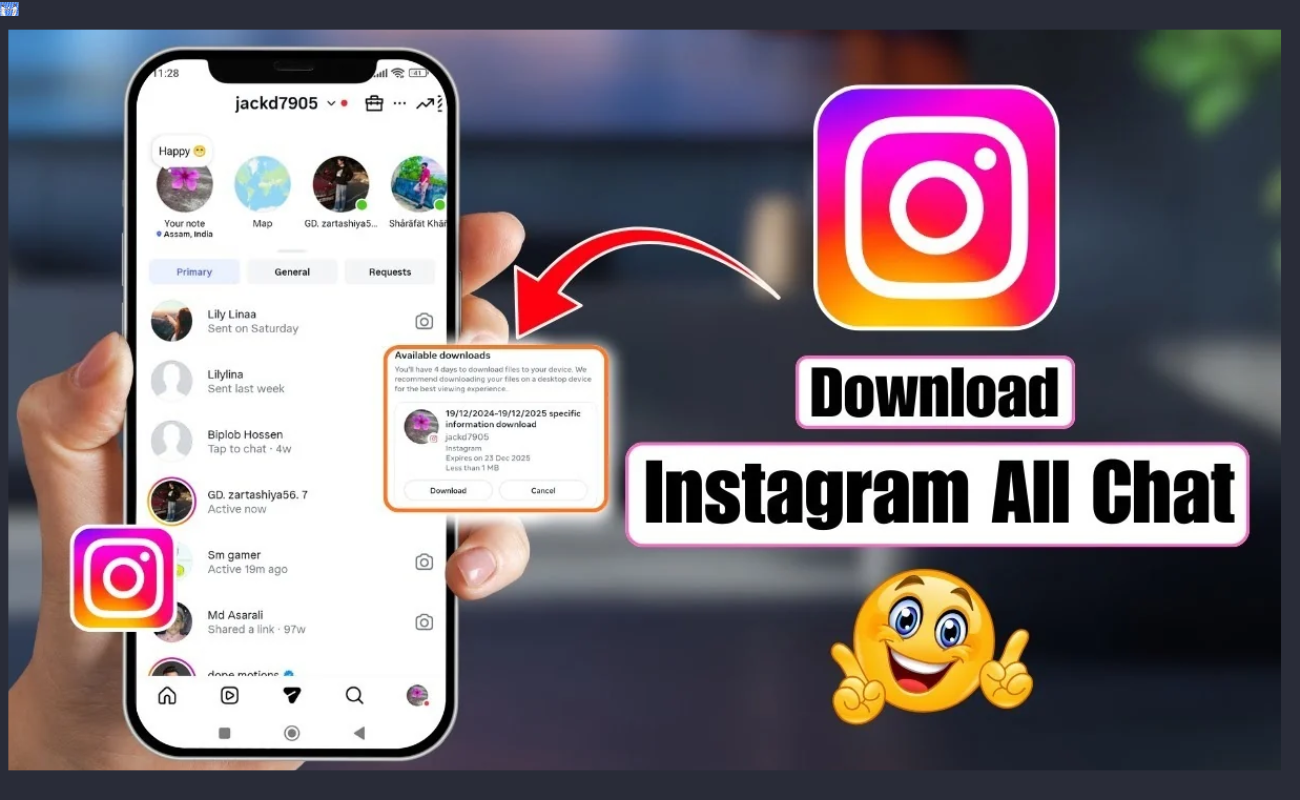
Instagram messages can get deleted in no time. For example, a bug, accidental delete or closed account can delete years of chats. The bright side is that you can save a free copy of the messages you are sending from your own account on your own device using Meta.
This article will show you how to get a copy of Instagram’s chat records on a smartphone or laptop. You will discover what settings to select, how long it will take for the file to arrive, and how to utilize it after it arrives. It is easy to set up and only takes a few minutes.
How to Export Your Instagram Messages
The safest approach to backing up the DMs is requesting a copy of the data from Meta. This can be accomplished from the Instagram app itself.
Tap the app and click on profile. Tap on the three lines at the top right and then tap Accounts Center. Select Your information and permissions under Account settings. Then tap Download your information and then Download or transfer information.
If you’ve connected more than one Instagram account, choose the one you wish to use. Then choose Specific types of information. Note that you cannot select All available information; this file would be very large and slow to create. Select Messages and then select Next and then Download to device.
The same process can be repeated on a computer using Accounts Center in your browser. The option names are identical, although the screens are slightly different.
Choose the Right Export Settings
You’ll see several settings before you create the file. They impact the usefulness of your archive.
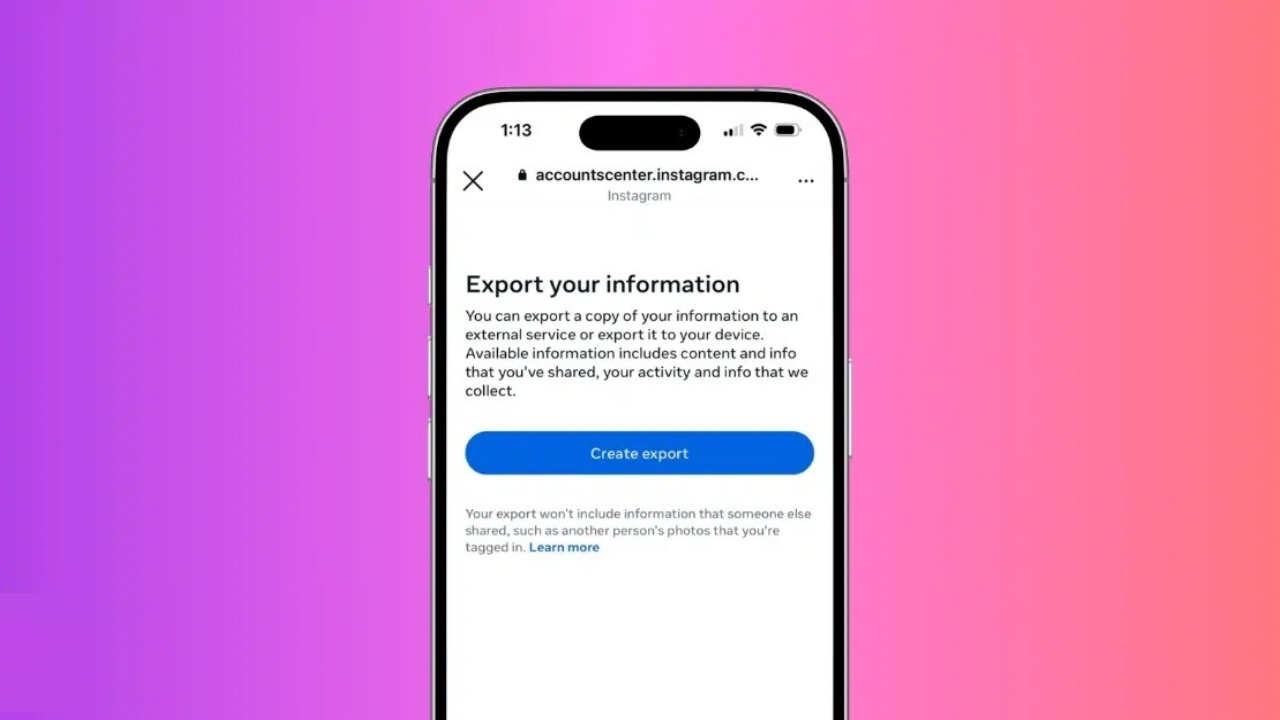
First, select a time period. If you want all messages, select All time. A shorter range results in a smaller file and quick to build.
Then choose the format to be JSON. Meta also has HTML (easier to open in a browser), but JSON is preferable if you want to pull your chats into another tool.
Lastly, change the quality of the media to Low. This makes the file light, and makes processing quicker. You still have your photos and videos, they just aren’t in the same quality. Click on Create files.
How Long Meta Takes to Prepare Your Archive
Once you tap on the Create files button, Meta begins to create your archive. This can take as long as 10 minutes to 24 hours, depending on the number of messages and photos you have. You can continue to use Instagram as usual during the waiting period.
An e-mail will be sent when the archive is ready for you. Open it, or go back to Accounts Center and the Download your information page, and tap Download. If Meta asks you to log in again, do so. The file is delivered as a zip file and the link is valid only for a short period of time, so get it before it’s too late.
What to Do With Your Instagram ZIP File
After downloading the ZIP to your device, store it in a secure location. You have more than one copy: A cloud drive or an external hard drive.
It is not necessary to unzip the file to make a backup. When opened, each conversation will have a folder, containing chats in the form of JSON files. These are not easily readable as they contain a lot of code and timestamps.
You can use a JSON viewer or a service that will convert your chat into a PDF or printed book for an easier read. Some of these tools require the ZIP file, as is, so read the instructions first. Please read the privacy policy before sending private messages at all times.
Why You Should Back Up Your Instagram DMs
Direct messages are more than just banter. They contain jokes, pictures and snapshots you might want years later. All of this can be lost if someone hacks into the account, deletes the chat, or closes the profile.
A backup only takes minutes and it’s free. You can do it every few months to keep up to date. Once you learn how to download Instagram chat history, make a note of it and preserve the memories.
FAQs
1.What is the way to download my DMs from Instagram?
In your Instagram settings, click Open Accounts Center, and then click Download your information.
2.What should I use, JSON or HTML?
If you need to add your chats to a PDF creator or bookmaker, then select JSON. If only you are looking to read your messages in a Web browser, select HTML.
3.How long does it take Meta to prepare the export?
Typically, it will take 10 minutes to 24 hours, depending on the number of messages and photos you have. Meta sends out an email as soon as the file is prepared.
4.Do I need to unzip the file?
For more than just a back-up. Leave the ZIP file as it is given by Meta. If you are intending to upload to another tool, make sure to read the instructions for other tools as many require it without unzipping.
5.Is it possible to download only one conversation?
A single chat is not included in Meta’s export, it’s all messages in the date range you select. With the archive, you can locate the folder of the person that you want.
Read More: SIM Registration Check 2026: How to Find Out Which SIMs Are Under Your NID